
Download once. Read anywhere.
- Both translated and bilingual EPUBs included
- Read offline in your favorite EPUB app
- No subscription—Plus credits never expire
Felix Li Co-founder of EPUB Translator
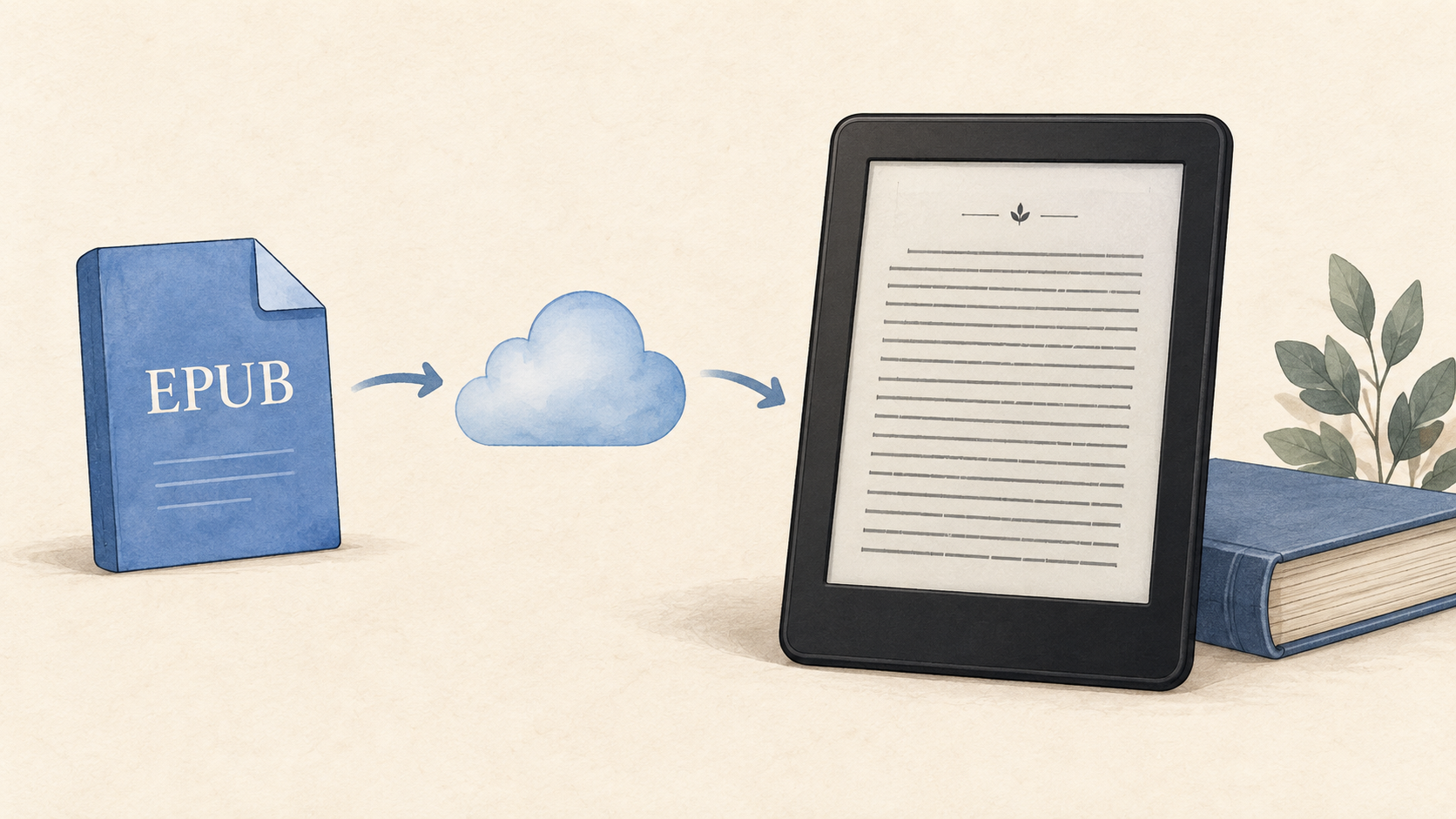
The easiest way to read an EPUB on a supported Kindle is to upload it to Amazon's Send to Kindle website. Amazon processes the file for your Kindle library. The web uploader accepts EPUB files up to 200 MB, and the service is free.
The transfer method matters. Sending an EPUB through Amazon and copying a file over a USB cable follow different paths. This guide covers both, plus phone sharing, email, and the errors that can prevent a book from arriving.
| Method | Best when | What to check |
|---|---|---|
| Send to Kindle website | You want a simple upload from a browser | EPUB is 200 MB or smaller |
| Kindle app sharing | The EPUB is already on your phone | Kindle app is installed and signed in |
| You already use your Kindle email address | Sender is approved; attachments total 50 MB or less | |
| USB | You need an offline transfer or have an affected older Kindle | Convert to a format your Kindle model supports |
For most readers, start with the website. Amazon documents the available Send to Kindle methods. If your Kindle dates from 2012 or earlier, read the older-device section below before choosing wireless delivery.
.epub file on your computer or phone.Amazon explicitly recommends enabling Add to your library. Keep your original EPUB too, especially if you want to use it in another reading app later.
On an iPhone, iPad, or Android device, you can share a saved EPUB with the Kindle app:
These are Amazon's documented iOS and Android workflows. Share the downloaded file itself. A link to a download page is a different input.
If Kindle is missing from the sharing options, check that the app is installed and updated. You can also use the Send to Kindle website from your phone's browser.
Your Kindle has a Send to Kindle email address. It is separate from the email address you use to sign in to Amazon.
Amazon's email walkthrough explains the setup. Its email limits allow up to 25 attachments with a combined size of 50 MB or less. Your email provider may impose a smaller limit.
For an EPUB larger than the email allowance but within 200 MB, use the website instead.
A USB cable copies files onto the device. It does not run the same conversion as Amazon's online uploader. For the standard Kindle reader, prepare a compatible Kindle file before transferring your EPUB.
One option is Calibre:
Calibre documents its conversion formats and device-transfer controls. Changing a filename from .epub to .azw3 does not convert the book.
Mac users: Amazon says Kindle Scribe and Kindle models released in 2024 require a separate application for USB file transfers on a Mac. Its Send to Kindle app includes a USB File Manager. See Amazon's current USB instructions for your setup.
Amazon ended service support for its listed Kindle e-readers released in 2012 or earlier on May 20, 2026. Send to Kindle is unavailable on those affected devices, although personal documents can still be transferred by USB.
The list includes Kindle Keyboard, Kindle Touch, Kindle DX, and the original Kindle Paperwhite, among other models. Check Amazon's affected-device list if you are unsure.
Do not factory-reset or deregister an affected Kindle to troubleshoot delivery. Amazon says those devices cannot be registered again. Already-downloaded books remain readable while the device stays registered.
Check Amazon's Send to Kindle error guide for the code you received:
| Error | What to check |
|---|---|
| E001 or E004 | Check the format and whether the file is password-protected or encrypted. |
| E006 or E007 | Check the attachment count and size; use fewer files or the web uploader. |
| E014 | Approve the sending email address, then resend. |
| E999 | Internal error. Wait and try again later. |
An E999 message alone does not establish that your EPUB is damaged.
Check these before uploading the same file repeatedly:
If one EPUB fails while another arrives, investigate the failing file. If several files fail, check the account, connection, and delivery method before changing the books. This comparison helps narrow the problem; it does not identify the cause by itself.
Opening successfully in another reader does not guarantee acceptance by Send to Kindle. Calibre's email-delivery guidance describes EPUBs that Amazon rejects despite working elsewhere.
Keep the original. Start with a fresh download or export from the source. If you try a conversion to simplify the file, inspect the result: conversion can remove embedded fonts and advanced formatting. It is a troubleshooting option, with no guarantee that Amazon will accept the output.
Amazon's E016 error means conversion to reflowable text failed. The delivered document retains its original layout, with no adjustable font size or text reflow.
For documents you can edit, Amazon's conversion guidance identifies complex tables and other unsupported elements as possible problems. Review a simpler export before sending it again.
If you want the book in another language, prepare the translated EPUB before sending it to Amazon.
EPUB Translator provides translated and bilingual EPUB downloads when they are ready and download access is available. Choose the translated edition for reading in the target language, or the bilingual edition to keep the original and translation together.
Download your chosen file, then upload it yourself through Send to Kindle. After delivery, check an early chapter, chapter navigation, and any passages with special characters before settling in to read. Bilingual layouts and language support need checking on your particular Kindle; a successful upload does not establish that every page displays correctly.
Yes. Amazon provides Send to Kindle at no additional cost.
For Send to Kindle, upload the EPUB directly. Amazon's current supported-input list includes EPUB. USB transfer has different requirements, so use a format supported by your device for that route.
Amazon currently lists personal documents as unsupported in Kindle for Web. Use a supported Kindle app or e-reader for documents sent through Send to Kindle. See Amazon's app compatibility table.
Amazon does not accept password-protected or encrypted documents. For protected EPUBs, use the provider's supported reading workflow or ask about an unprotected download.
© 2026 Epub Translator